
Ordering Sample for Your Print On Demand Store
This article will show us how to learn about Dashboard menus and How to place a sample order with Qikink.
Learn about the Qikink Dashboard menu and settings.
Pro Tip
Before you place a customer order, it is important that you place a sample order. Product samples help you ensure each order for your store is a worthwhile investment for you and your customers. You can determine if an item fits your brand, meets your quality standards, and will live up to your customer's expectations.
How to Add a Design in Qikink
Step 1: Log in to Your Merchant Dashboard
Step 2: Click on "Add Design"
- Click on Add Design and drag and drop your design file.
Step 3: Verify Your Design File
- Ensure your design file is in either JPEG or PNG format.
- For the best output, we recommend using a design file at 300 DPI.
- The file size should not exceed 25 MB.
Your design file is now added and ready for use!
Create a Sample Order
- 1Go to Orders > Create Order.
- 2Select the Category and Product.
- 3Select the Printing Type (choose your preferred printing method).
- 4Choose the Size and Color of the product.
- 5Enter the Quantity.
- 6Select the Placement (e.g., Front, Back, Left Pocket, Right Pocket, Left Sleeve, Right Sleeve).
- 7Click on Add Design and upload your design from your files.
- 8Finally, click on Add to Order.
- 9Select any Add-ons you wish to include. Please note that add-ons are optional and can enhance your order.
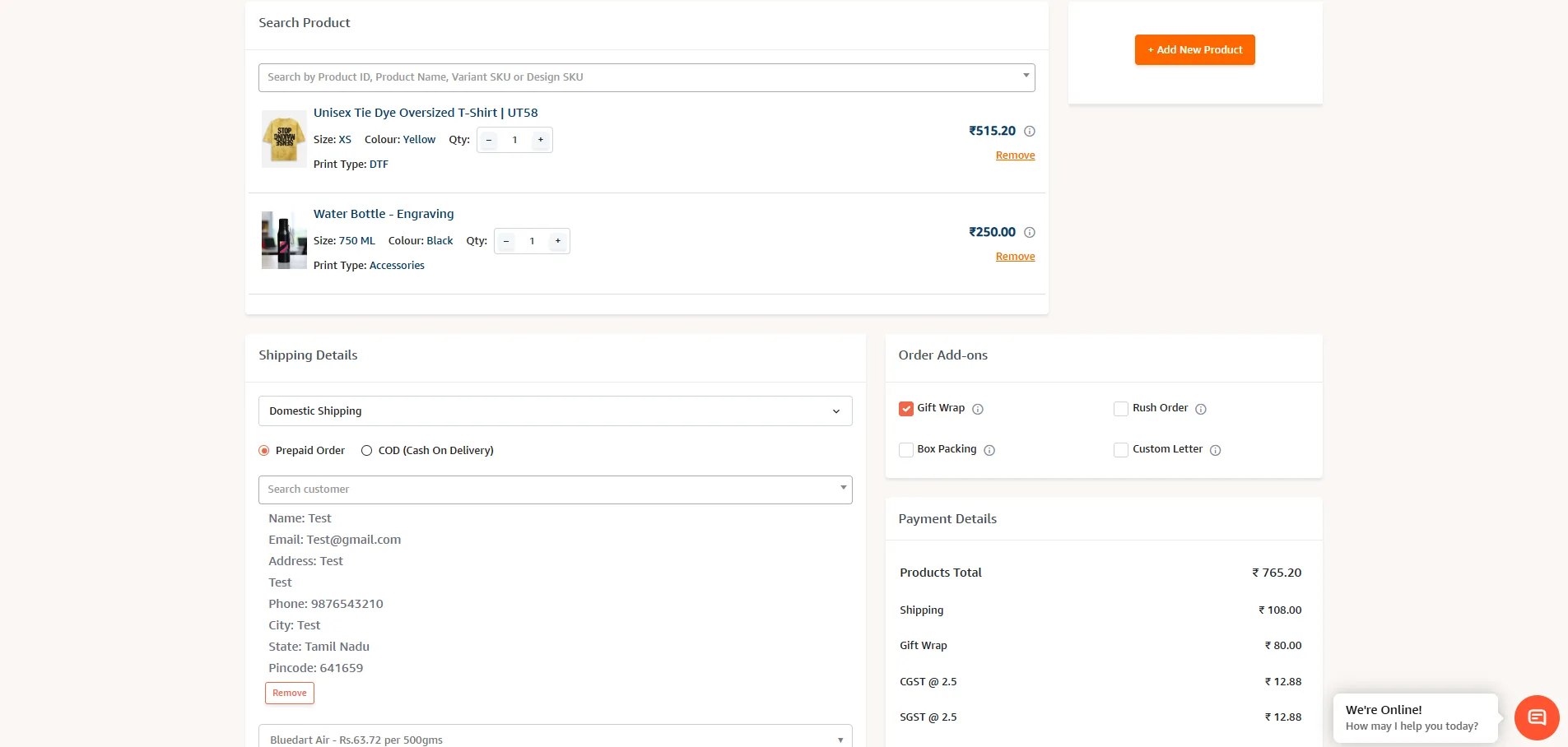
Fill in your order details, including the Order Reference Number, Shipping Type, and any comments.
Complete the shipping details by entering the Payment Mode, and Delivery Pincode, and selecting the Courier Carrier.
Alert
If your customer has made the payment to your bank account, you have to select PREPAID under Payment Mode.
If your customer has requested to make the payment upon delivery, you need to select CASH ON DELIVERY and enter the amount to be collected from the customer under ORDER VALUE.
Pro Tip
According to Qikink, all orders require prepayment.
- Fill in customer details: contact name, contact number, valid email address, shipping address (including door number and landmark), and order value.
Pro Tip
Your order value is your retail price or the amount you have charged your customer.
- Finally click Save order.
- Your sample order has been successfully placed. You can now view it under Orders > All Orders.
Alert
You should maintain sufficient credits in Qikink for a seamless order flow. However, there is no minimum recharge amount required, and you can recharge while placing an order.
The order value should be greater than or equal to the invoice value. If the package is lost or damaged in transit, we can only provide compensation based on the order value, as that is the amount we can claim.
Pro Tip
For sample orders, opt for prepaid payment methods instead of cash on delivery.