
Get and Pull All Orders From Shopify Store to Qikink
Introduction
Changing your print-on-demand provider to Qikink for your Shopify store? Qikink made the process easy with simple steps. With the newly updated mapping products, you can simply choose Qikink's products to replace your old provider's products. We will see more about that in this article.
How To Pull Orders?
- 1Open Qikink app in shopify admin panel
- 2Click on "Sync" button on the product listing for bulk select, your product will be marked as Qikink fulfilment
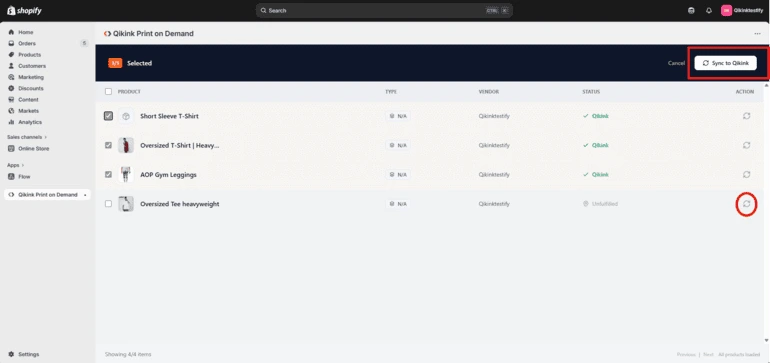
- 1You can change upto 5 products to Qikink fulfilment by selecting those product listing and clicking on "Sync to Qikink"
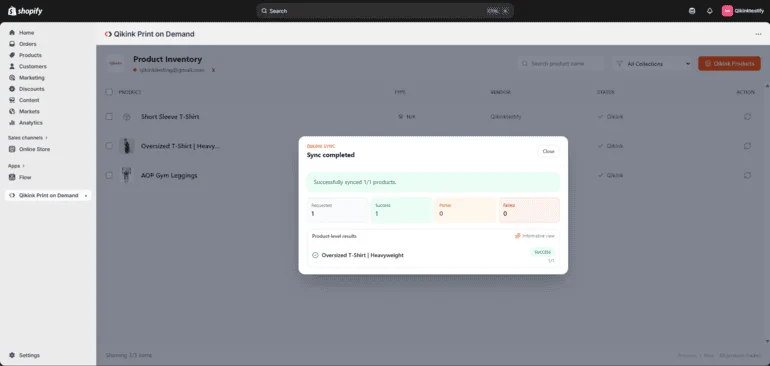
- 1Now the product fulfilment location is successfully to Qikink. Once you receive an order, you have to map the product in your Qikink seller dashboard.
- 2To map store orders with Qikink products, follow the instructions below:
- On the dashboard menu, navigate to ''Orders'' and select ''Store/On Hold Orders.''
- Locate the specific order you want to map products for and click the button labeled "Sync Products."
Pro Tip
It is essential to ensure that orders containing non-Qikink products are mapped with the corresponding Qikink product for successful fulfillment.
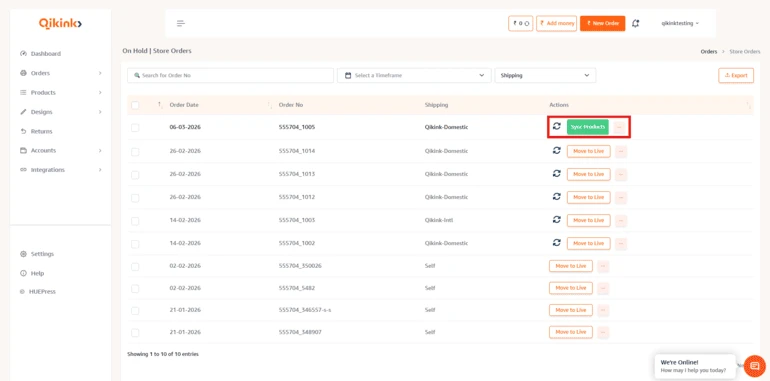
- A popup window will appear. In the popup, select the 'Map Products' tab.
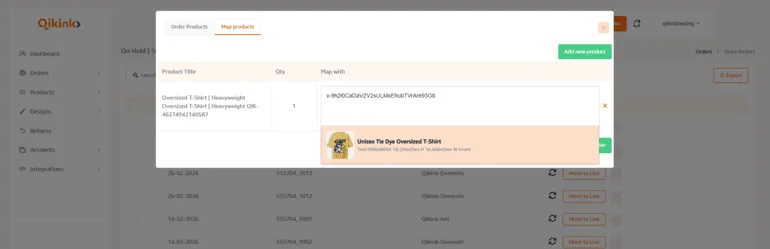
- Select the desired Qikink product for each Unmapped product by searching Design name, Product SKU, Design SKU from My Products.
- Click on "Add to Order."
- Click "Move to Live" on orders, and we will start processing those orders.
Alert
Once you map the products, we'll save those details and use them when you receive the same order again.
Frequently asked questions:
No. Once you map a store product to a Qikink product, the mapping is saved in the system. When the same product is ordered again, it will automatically sync without requiring manual mapping.
Orders containing unmapped products will remain in Store / On Hold Orders and will not move to production. You must map the product to a corresponding Qikink product before processing can begin.
When you click Move to Live, the order is confirmed and moved to the production queue. After this step, Qikink will begin processing the order for printing and fulfillment.
Orders may appear under On Hold Orders if:
Mapping the product will allow you to move the order to Live.
- The product is not mapped to a Qikink product
- All the store orders will moved to live from On Hold orders
- You can set prepaid orders to be moved to live automatically
Mapping the product will allow you to move the order to Live.
No. Your existing product listings, product pages, and store designs will remain the same. You are only changing the fulfilment provider to Qikink.