
Push products to your Shopify or Woo-commerce store
To eliminate the process of adding products to your store manually, Qikink offers Push Products feature to save up your time.
In this article, we will see how to push products to your store.
Step 1: Log in to your Qikink Dashboard.
Step 2: Go to Products->Create product.
Step 3: Select Category and Product
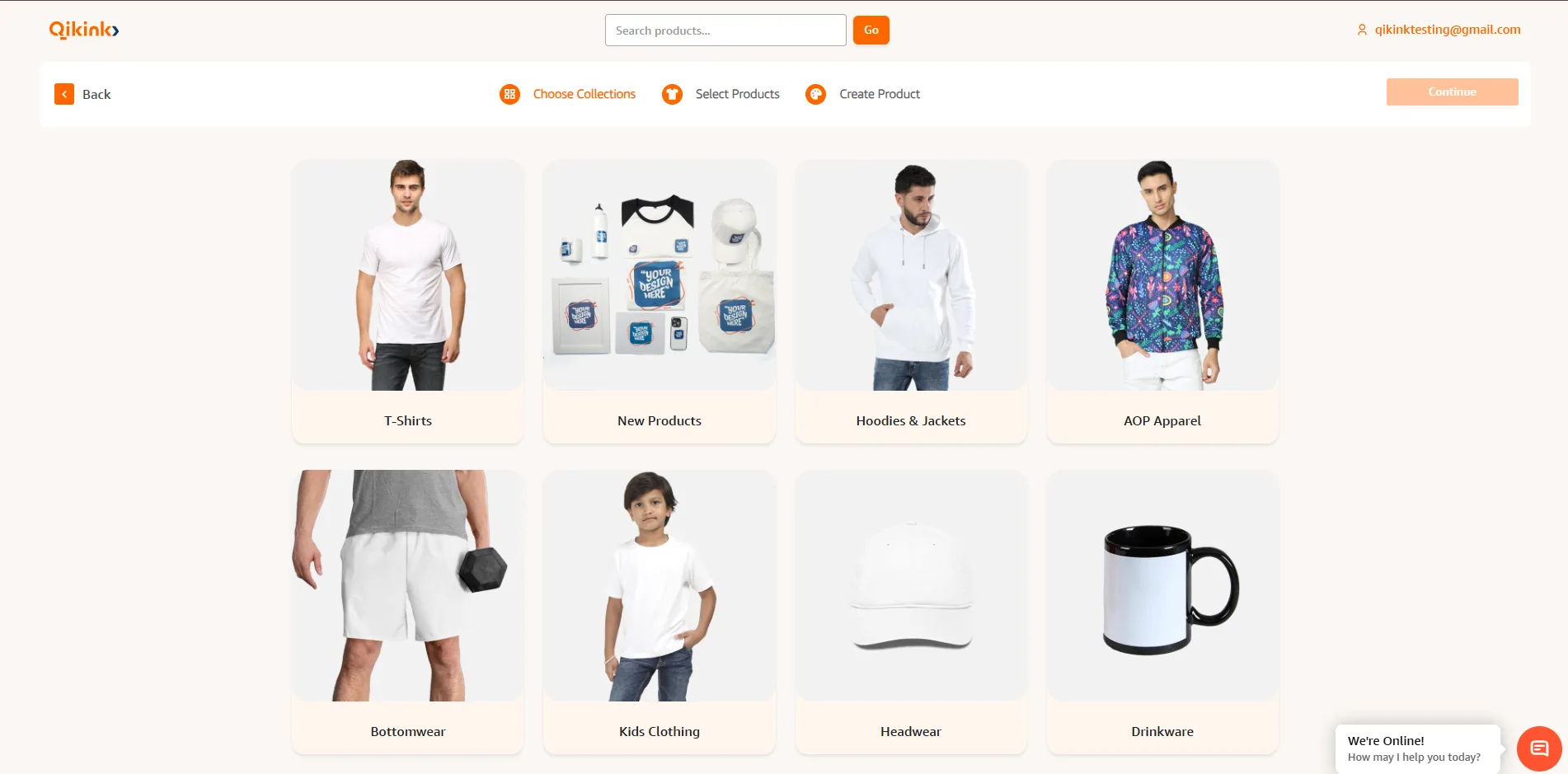
Step 4: Select the Color and Size
Step 5: Select Placement
Pro Tip
For plain t-shirts, enable the Plain t-shirt checkbox
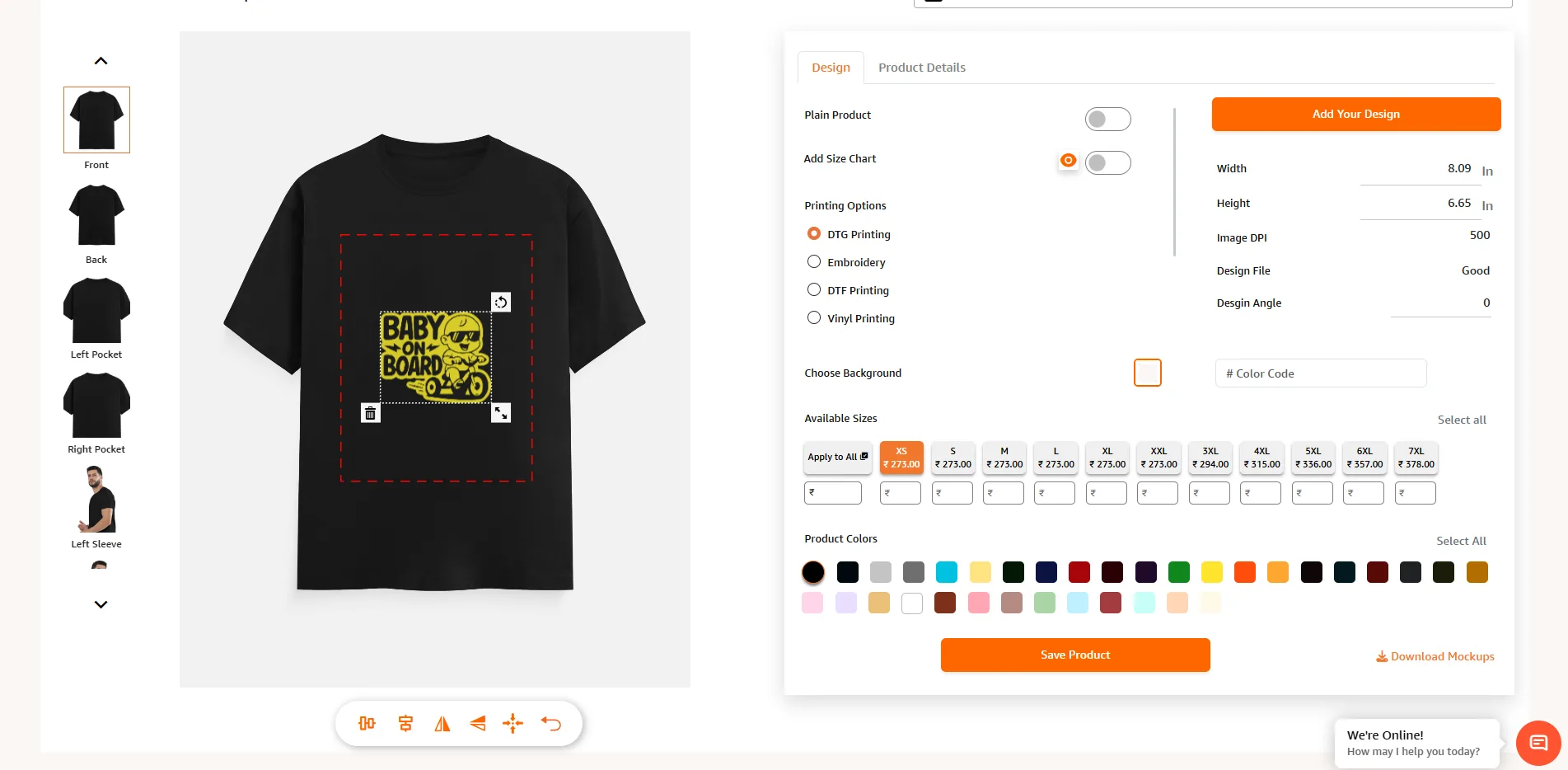
Step 6: Add a new design or select one from My Designs
Step 7: Click on the Continue button
Step 8: The Product SKUs are generated. Click on Save Products to save the products to the My Products section.
Step 9: Go to My Products
Step 10: Enter your Selling Price and click on Continue
Step 11: Enter the product name, write your short description, description, tags, and product type
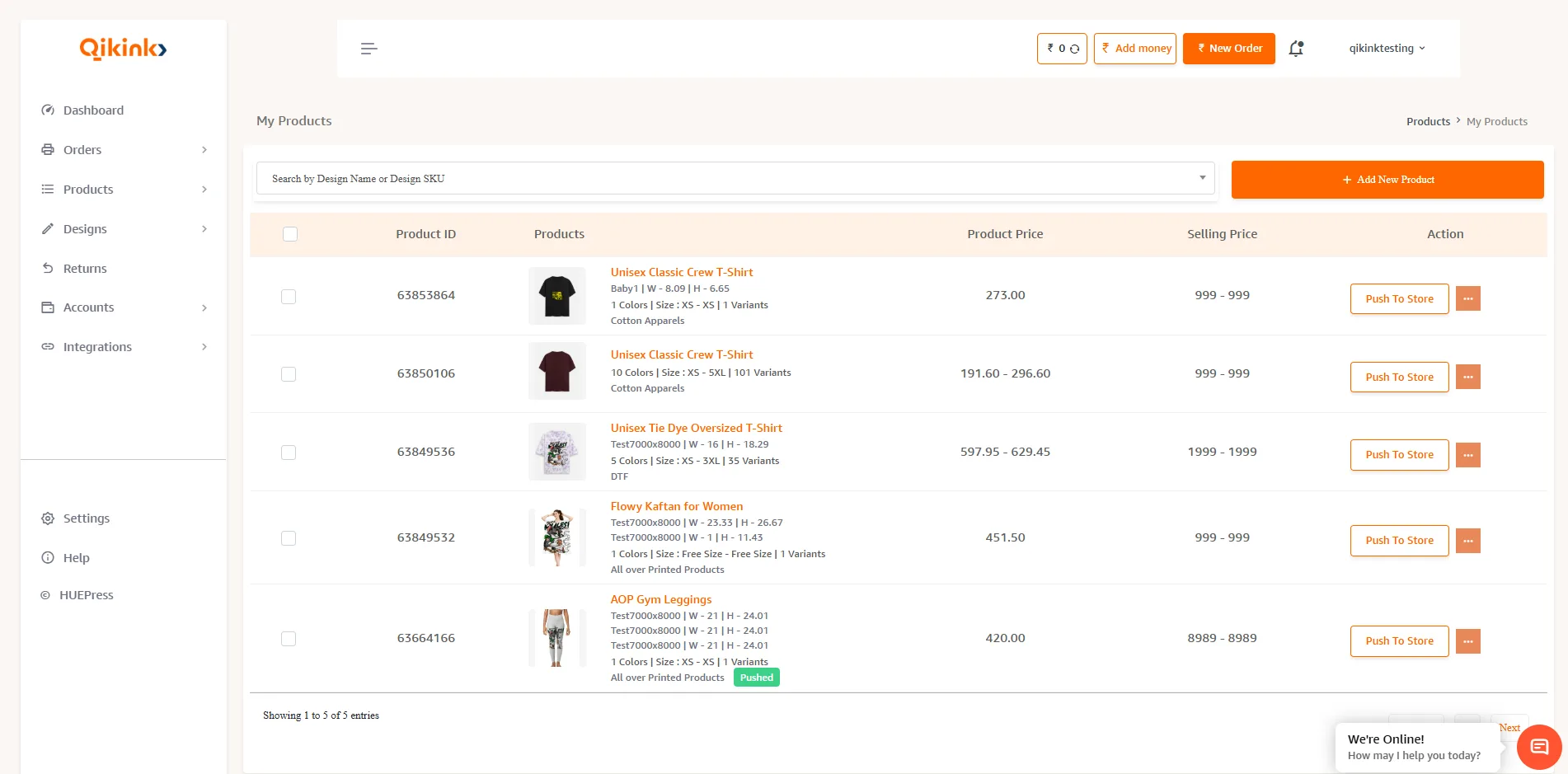
Step 12: Select the product that you wish to push to your store.
Step 13: Click on Push to store option
Congratulations, you'll successfully push the product to your store with just a few steps.
Frequently asked questions:
Happy selling!