
How to Add Designs on Qikink Dashboard
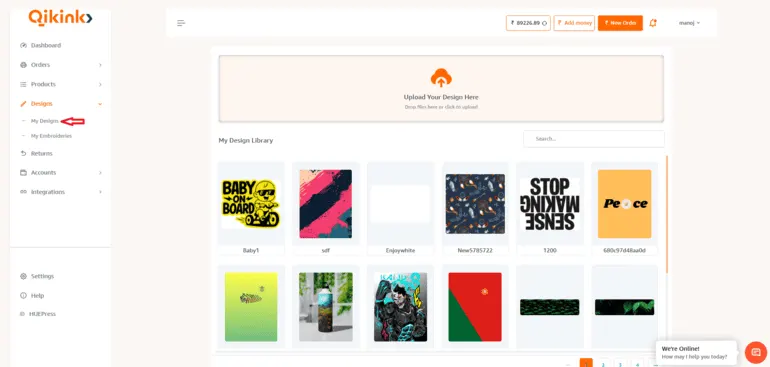
In this article, we're going to see how to add designs to My designs.
Important
Before you add any design, make sure you trim all the empty/transparent spaces around the design; otherwise, it will reflect in your final printed product.
We do not make any changes to your design file.
- 1Log in to your Qikink Dashboard
- 2Go to Designs > Add Design
- 3Click or drag the file to upload
- 4Boom! Your next bestselling design is uploaded
File Requirements
Make sure your design file is in PNG or JPEG format, with a resolution of 300 DPI for better output, does not exceed 25 MB in size, has dimensions of up to 25,000 × 25,000 pixels, and has a file name under 25 characters.
Frequently Asked Questions
What are the recommended file formats and sizes?
- File formats: PNG
- Resolution: Minimum 150–300 DPI for sharp print
- Color mode: RGB
Yes. You can upload multiple designs for the same product, such as front/back prints or different variants. Use the “Add Design” option for each placement.
- Use the dashboard guidelines and alignment tools.
- Ensure designs are within the print safe area.
- Avoid very thin lines for small prints — they may not show clearly.
Yes, Qikink allows you to use the same design on multiple products.